Buildkite
以下示例展示了如何将 Turborepo 与 Buildkite 结合使用。
¥The following example shows how to use Turborepo with Buildkite.
对于给定的根 package.json:
¥For a given root package.json:
以及 turbo.json:
¥And a turbo.json:


在你的代码库中创建一个名为 .buildkite/pipeline.yml 的文件,其中包含以下内容:
¥Create a file called .buildkite/pipeline.yml in your repository with the following contents:
创建管道
¥Create a Pipeline
要在 Buildkite 控制面板中创建流水线,你需要先从代码仓库上传流水线定义。
¥To create your pipeline in the Buildkite dashboard, you'll need to first upload the pipeline definition from your repository.
-
选择“管道”导航至 Buildkite 控制面板。
¥Select Pipelines to navigate to the Buildkite dashboard.
-
选择“新建流水线”。
¥Select New pipeline.
-
在相应的“名称”和“描述”字段中输入你的管道详细信息。
¥Enter your pipeline's details in the respective Name and Description fields.
-
在步骤编辑器中,确保有一个步骤用于从你的代码库上传定义:
¥In the Steps editor, ensure there's a step to upload the definition from your repository:
-
选择“创建管道”,然后单击“新建构建”,再选择“创建构建”。
¥Select Create Pipeline, then click New Build, then select Create Build.
每当你进行需要验证的更改时,运行管道。
¥Run the pipeline whenever you make changes you want to verify.
远程缓存
¥Remote Caching
要使用远程缓存,请检索提供程序的远程缓存的团队和令牌。在本例中,我们将使用 Vercel 远程缓存:
¥To use Remote Caching, retrieve the team and token for the Remote Cache for your provider. In this example, we'll use Vercel Remote Cache:
-
TURBO_TOKEN- 用于访问远程缓存的 Bearer 令牌¥
TURBO_TOKEN- The Bearer token to access the Remote Cache -
TURBO_TEAM- monorepo 所属账户¥
TURBO_TEAM- The account to which the monorepo belongs
要使用 Vercel 远程缓存,你可以通过以下几个步骤获取以下变量的值:
¥To use Vercel Remote Caching, you can get the value of these variables in a few steps:
-
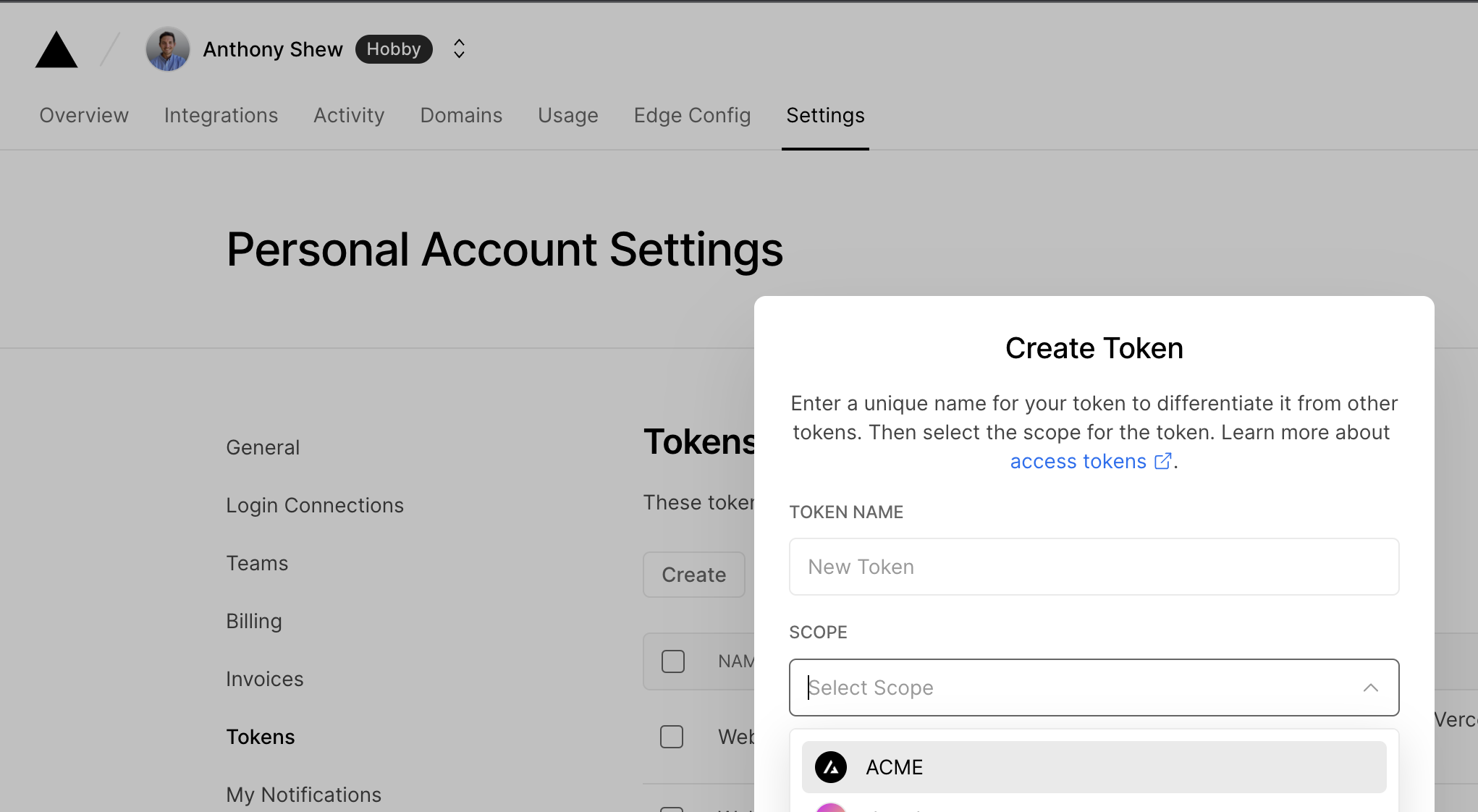
在 Vercel 仪表板 中为你的账户创建作用域访问令牌。将值复制到安全的地方。你稍后会需要它。
¥Create a Scoped Access Token to your account in the Vercel Dashboard. Copy the value to a safe place. You'll need it in a moment.
-
获取 你的团队 URL 并复制其值。这两个值将在下一步中使用。
¥Obtain your Team URL and copy its value as well. Both values will be used in the next step.
-
在 Buildkite 控制面板中,为每个值创建两个新的 Buildkite 密钥。将它们命名为
TURBO_TOKEN和TURBO_TEAM。¥In the Buildkite dashboard, create two new Buildkite secrets, one for each value. Name them
TURBO_TOKENandTURBO_TEAM. -
更新
pipeline.yml,使其能够使用 Buildkite 密钥 插件获取并应用TURBO_TOKEN和TURBO_TEAM作为环境变量,如示例所示。(有关其他密钥管理选项,请参阅 Buildkite 文档中的 管理流水线密钥。)¥Update
pipeline.ymlto fetch and applyTURBO_TOKENandTURBO_TEAMas environment variables with the Buildkite Secrets plugin as shown. (For additional secret-management options, read Managing pipeline secrets in the Buildkite documentation.).buildkite/pipeline.yml 将这些更改提交并推送到你的存储库,在下次流水线运行时,密钥将被应用,Vercel 远程缓存将处于活动状态。
¥Commit and push these changes to your repository, and on the next pipeline run, the secrets will be applied and Vercel Remote Caching will be active.